
When you have a specific delivery schedule for a customer and you want to allow that customer to select a delivery day for every order, you need to configure the delivery schedule.
Create
Steps to create the delivery schedule:
- To create a delivery schedule you need to have created the customer. Refer to this article.
- Select the customer to add the delivery schedule.
- Select the Start date.
- Based on the Start date week day, the Delivery day will appear.
- Select the Order deadline day and Order deadline time. The deadline is the limit for a customer to order for a specific delivery day.
- Type in the Recurrence in week. The delivery day will repeat every recurring week. The minimum is 1 week and the maximum is 52 weeks.
- Select if the line is enabled or disabled with the toggle

- Click on the "+" button

- Repeat a many time as you want and then click on the "Save" button
What is the client seeing?
When the delivery schedule is created, the client will be able to configure a target inventory quantities for every delivery day. So, if you delete a delivery day, it will also delete the target inventory quantity of your client.
This is an example of what your customers will use to select a delivery date when ordering:
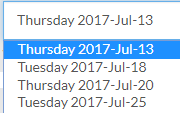
The next delivery day will also be visible on the listing of the vendors where the customers can access your catalogs:

Mass import
For a mass import of delivery schedule, follow those steps:
- Go in the customer section
- Go at the bottom of the page and click on the "Import delivery schedule" button

- Click on the "Download sample file" to download and fill in the information.
Here is the definition of the fields of the file:Column Details Customer Number Customer number Delivery day Mon
Tue
Wed
Thu
Fri
Sat
SunEnabled Yes
NoDeadline Day Mon
Tue
Wed
Thu
Fri
Sat
SunDeadline Time 23:00:00 format, put a ' in front of the value to keep the format valid in MS Excel. Recurrence Start Date 2018-02-06 05:00:00 Recurrence Interval - Choose the file that you want to import using the "Choose File" button:
- Click the "Import" button
- Get the import feedback:
Creation If the schedule is not created for a specific day, il will be created. Modify If you import a value and there is already a value for that day, it will be replaced by the new value. Disable A disabled value will not show on the client screen but will keep its Inventory Target value if it is enabled in the future.
Delivery Window
To define how long in advance the customer will be able to select a delivery date, you need to configure the "Delivery window" in the company profile here 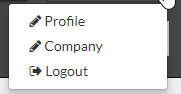 . For example, 14 days, will allow your customer to select a delivery date 2 weeks in advance. 1 day will select automatically the next delivery.
Comments
0 comments
Please sign in to leave a comment.